






How to use Campaign Creator in Nippy
Nippy Campaign Creator is the tool to easily simulate, create, and launch complex campaigns.
While Nippy Marketing Plan is designed to orchestrate integrated marketing through programs and campaigns and allow for marketing investment management on company, product, or business unit level, Nippy Campaign Creator is developed for marketers to easily and quickly build complex campaign workflows.
Nippy Campaign Creator allows for campaign creation, orchestration of the marketing tactics and projects part of the campaign, and assigning project managers.
You can use Nippy Campaign Creator with any Nippy Marketer plan.
In this article you will learn about:
- Campaign creator elements
- Add a campaign in Campaign Creator
- Add projects to a campaign in Campaign Creator
- Assign project managers to projects
- Estimate the required for the campaign resources
- Launch campaigns in Campaign Creator
Campaign Creator structure
Nippy Campaign Creator consists of two parts:
- Campaign elements sidebar - situated in the right, the sidebar consists of two dropdowns and search boxes for Campaign elements and Team members
- Campaign elements - all completed, with at least one task completed, and template projects in your Nippy.
- Team members - your marketing team members in Nippy.
- My campaign - the whiteboard space where projects and team members are dragged to create campaigns.
- Campaign card in the My campaign whiteboard. When you add or create a new campaign, the campaign card reveals information on the campaign:
-
-
- Name of the campaign
- Start and launch date of the campaign
- The campaign manager
- In the top right corner three dots leading to options to remove the campaign from the campaign creator, to delete the campaign from Nippy, and to edit the campaign
- Live data on: the planned effort for all activities in hours, the budget of the campaign, the number of projects and tasks under this campaign
- On the right of the card direct links to the GRID, GANTT, Calendar, and Launch button
-
6. The campaign elements - on the right from the campaign card, there are the campaign projects, part of this campaign. Opposite each name there are two icons - remove from the Campaign creator and edit.
7. Above the projects list there is the project icon, through which you can add new projects to this campaign.

How to create a campaign in Campaign Creator
In Campaign creator you can in minutes create complex campaigns and assign managers to the campaign's elements. Dragging a project in the My campaign assigns this project to the campaign. Dragging a team member to a specific project, assigns your colleague as a manager of this project.
To create a new campaign from scratch do the following:
1. Go to Campaign creator using the link in the blue sidebar in Nippy
2. To open the create campaign form, click on the plus icon in My campaign whiteboard and fill-in the campaign parameters. If you want to use campaigns elements that you still don't have in Nippy, you can add them in the campaign's form. They will appear in your My campaign space.
3. After you have saved the campaign, you can add additional elements. Expand the dropdown on the right under Campaign elements. Choose the project you need, click on the name and drag it to the projects in the space on the right from the campaign card.
The projects added to the campaign in Campaign Creator are automatically saved as drafts. To launch these projects in team workflows, you need to launch them from the project or relaunching the campaign. When relaunching the campaign, it will launch all draft projects under this campaign.
The added to a campaign projects automatically assume end date of one week before that launch date of the campaign. All tasks under this project adapt accordingly.
4. After you have added all required projects and campaign tactics to the campaign, expand the My team dropdown in the sidebar on the right, find the required manager for each one of the project, click the name and drag and drop it over the project you need your colleague to be assign to.
5. The campaign is automatically saved as a draft in Nippy. It will not be live in the marketing team's workflows until launched. To launch the campaign, click on the launch icon.

Campaign simulation in Campaign Creator
In the campaign card you can see live data on the needed for the campaign execution resources: planned effort in hours, campaign budget, number of projects under the campaign, number of tasks under the campaign and the campaign's project managers.
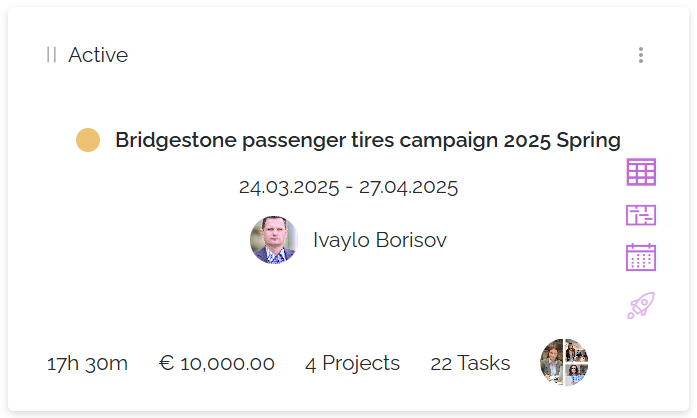
When adding or removing projects from a campaign in Campaign Creator, the data will update immediately to allow for immediate estimate and simulation of the required for the Campaign resources.
- Planned Effort: this is the sum of actual and planned effort of the tasks under the campaign. Nippy first ads available actual effort and if none available, ads the available planned effort. If the marketers are adding already implemented or projects' templates with available actual effort, the campaign simulation will give them very close to the real world estimate of the required time resources for this campaign
- Campaign Budget: When loading any type of campaign, in the Creator card you will see the budget amount as entered in the campaign Form/GRID. When you add/remove projects, or change a project's budget, the campaign's budget amount in the card will change. If you LAUNCH a campaign from the Campaign Creator, the budget amount shown in the Campaign Creator card becomes the campaign's budget/internal budget. It is visible in the campaign's form and GRID.
- Number of projects: The number of projects under the campaign.
- Number of tasks: The total number of tasks under the projects of this campaign.
- Team: The projects managers of the projects under the campaign
Launch campaigns from Campaign Creator
All campaigns and added projects to a campaign in Campaign Creator are saved as drafts by default.
To push the campaign, its projects, and related tasks to the workflows of all team members, you need to launch the campaign through the Launch button.