







Marketing tasks management in Nippy
While campaigns and projects are the elements through which we structure and manage marketing implementation, tasks are the actual activities and responsibilities, through which we execute marketing activities.
Nippy Marketer has been built according to best practices of marketing execution and considering the specifics of the marketing work.
Nippy provides a complete set of tools to orchestrate campaigns, projects, and tasks for best in class marketing implementation, available in all Nippy Marketer products.
In this article:
- Task elements
- Types of tasks
- How to create tasks
- Edit tasks
- Complete tasks
- Duplicate tasks
- Record actual effort for tasks
- Nippy smart tasks algorithms
Task elements
For every task you can define following elements:
- Name (required field) - the name of the task. Make it short and clear to be self-explainable.
- Description - free text field for a short and clear description of the task.
- Project - choose an available project for this task or create a new one.
- Start date - the start date of the period in which the task must be completed.
- Due date - the date by which the task must be completed.
- Responsible - the responsible for the task.
- Planned effort - this is the actual number of hours one needs to complete a task. While start and due date determine the period in which the task must be completed, the effort concerns the actual time in hours required to perform the task. The planned effort may be determined in less than an hour but using decimals. 0.5 for example is half an hour.
- Predecessor task - the task preceding the new task.
- Completed % - slider that shows the part of task completion. Can be calculated automatically or edited manually.
- Checklist - a list of items that are required to be executed as part of the task.
- Notes - text field for notes and attached files.
*Name, Start date, and Due date are required fields. Without dates, the Nippy smart algorithms will not be able to manage the tasks.

Types of tasks in Nippy
Depending on your marketing workflows you can determine and manage following tasks state in Nippy:
- Draft tasks -.these are tasks that are not launched/active and not part of the Nippy algorithms and not visible in My Marketing Day dashboard. These tasks need to be launched to become part of your workflows.
- Active tasks - these tasks are launched. This means that the tasks are part of the responsible's workflows and they appear in the user's My marketing day dashboard.
- Tasks in progress - task might be active/launched but its actual execution might not have still started or ongoing at the moment. The system will set a task to be in progress if you click on the play button.
- Paused tasks - any task can be worked on, paused, and restarted multiple times. Paused tasks are not worked on and do not record actual effort. They can be restarted by the play icon.
- Completed tasks - complated tasks are marked as completed when work on the task is done. They are removed from My Marketing Day dashboard and cannot be edited.
Different types of tasks can be located and managed in the My manager/GRID.
Create tasks in Nippy
Nippy Marketer is designed to integrate marketing implementation with planning and analytics. Therefore, in Nippy you cannot create tasks, which are not part of a project and campaign.
While campaigns and projects are elements that allow to structure marketing communications and connect strategy with planning and implementation, tasks are the specific actions a marketer takes to execute marketing activities.
Therefore, the type, number, and order of tasks in a project is of paramount importance for the quality marketing implementation. Nippy is built according the principle of a detailed organization of a process through a detailed group of tasks. The more specific the tasks, the higher quality of process execution and the better the analysis of the processes' performance.
Nippy Marketer provides many easy ways for tasks creation:
- Create tasks in the Tasks form
- Create tasks in a Project form
- Create tasks in Nippy Grid
Create task in the Task form
All tasks elements can be created and edited in the tasks form. You can open the task form through the Power button anywhere in Nippy or through the plus icon in the tasks column in My marketing day.

Create tasks in a Project form
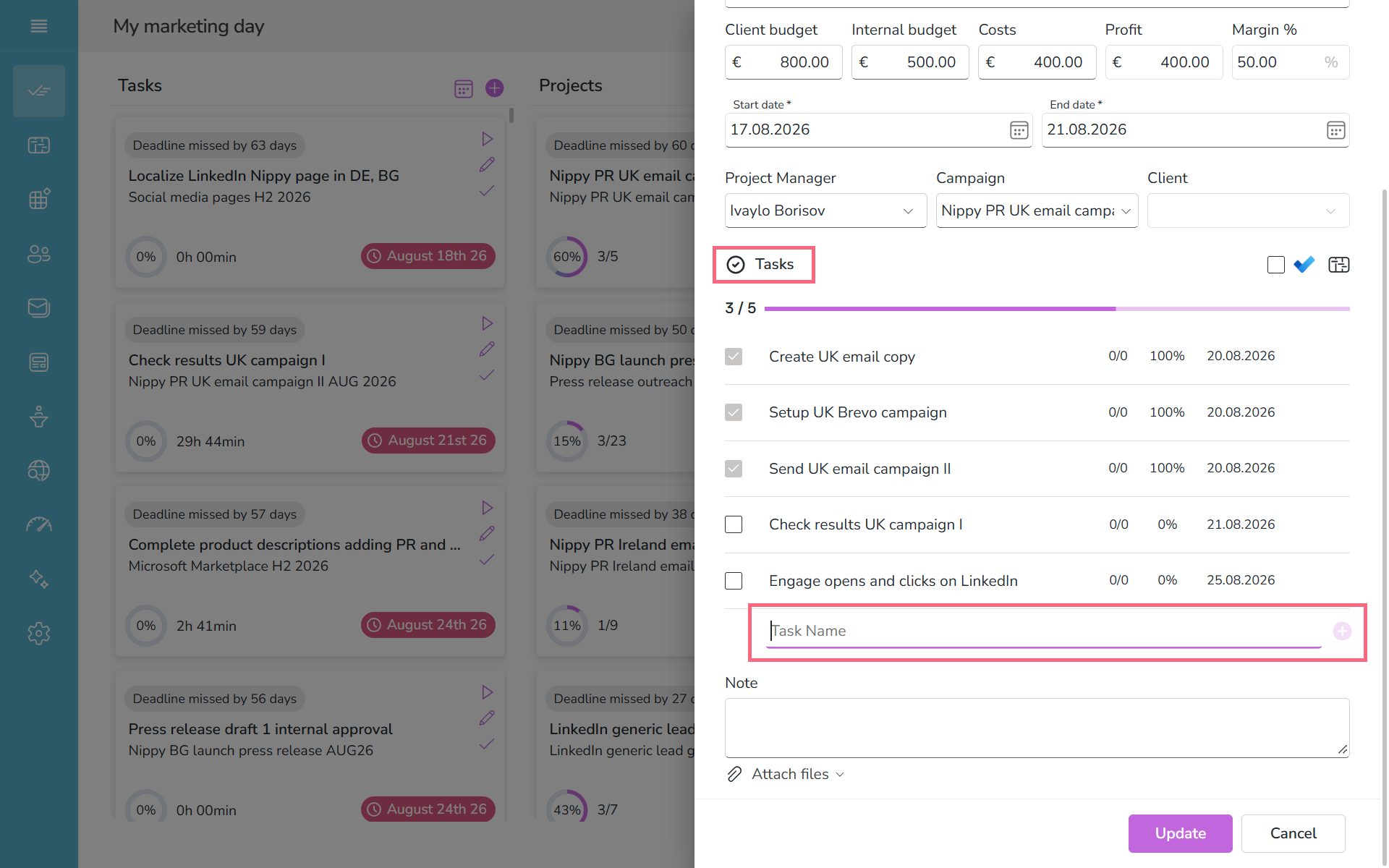
- Find the project you want to tasks to (My marketing day, GRID, GANNT, Calendar) and click on edit icon
 to open the Project form.
 - Scroll to the Tasks list and add any number of tasks. The tasks added in the project's dialog box will assume the start, end dates, and as a responsible, the project manager.
- Click SAVE, UPDATE or LAUNCH
Create tasks in the My manager Grid
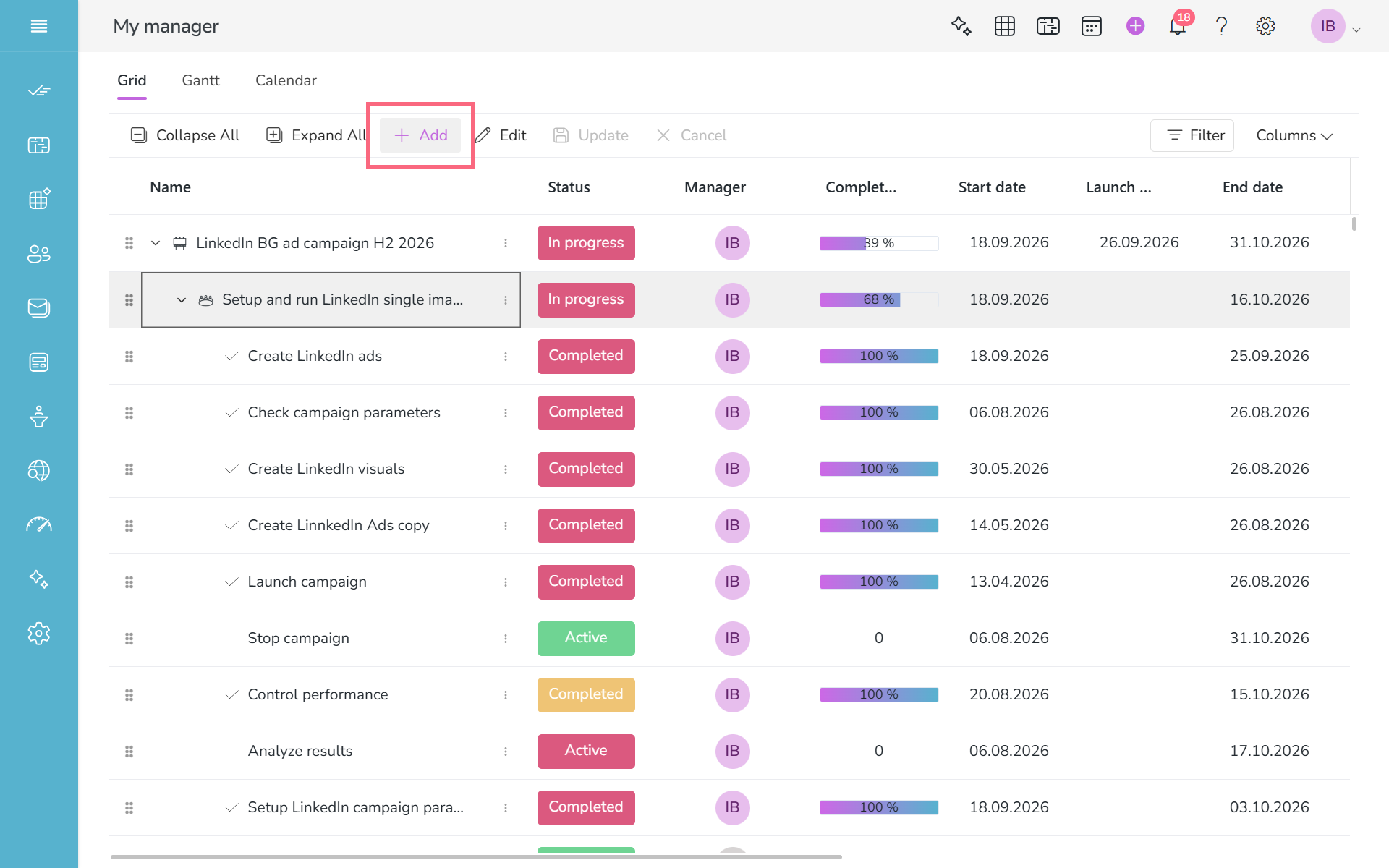
- Go to My manager using the menu in the sidebar.
- Choose the Grid tab.
- In the My manager table locate and select the project row under which you need to create the task (you could type the project name in the filtering filed of the Name column). Projects are marked with the project icon
 .
. - Click click Add toolbar button and fill in the row fields. If you don't edit tasks parameters,m it will assume the dates and manager of the Project.
Edit tasks
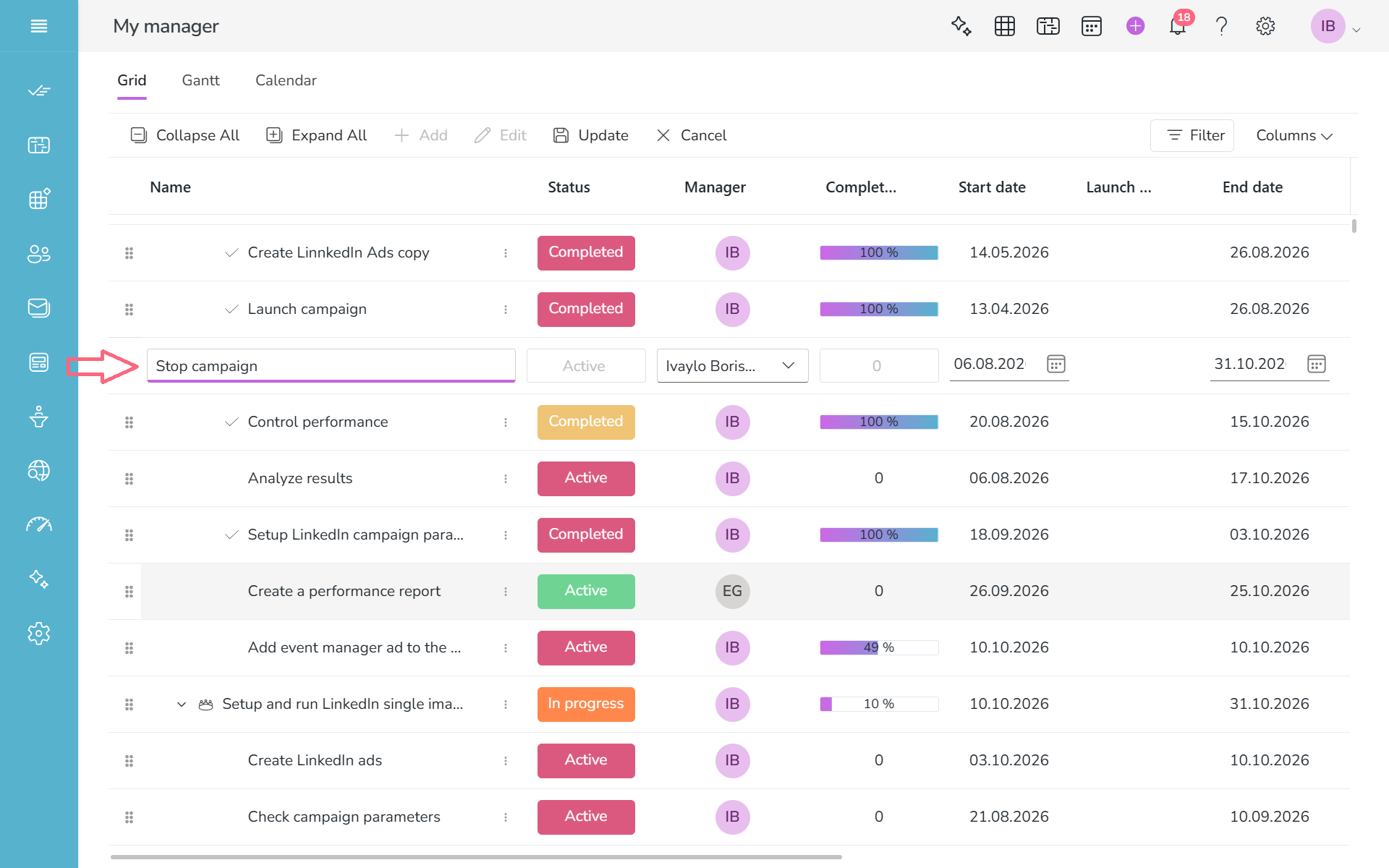
- Nippy tasks can be edited through the task's form when you click the edit icon .

- Tasks can also be edited in the Nippy Grid. Just double-click on any cell you want to edit.
How to start task execution and record required effort
Tasks have two parameters that measure the required actual time for a task and the percentage of completion of a task. While the two can be related, it might not be necessarily so. You might use more than the planned effort but still to have not completed the task.
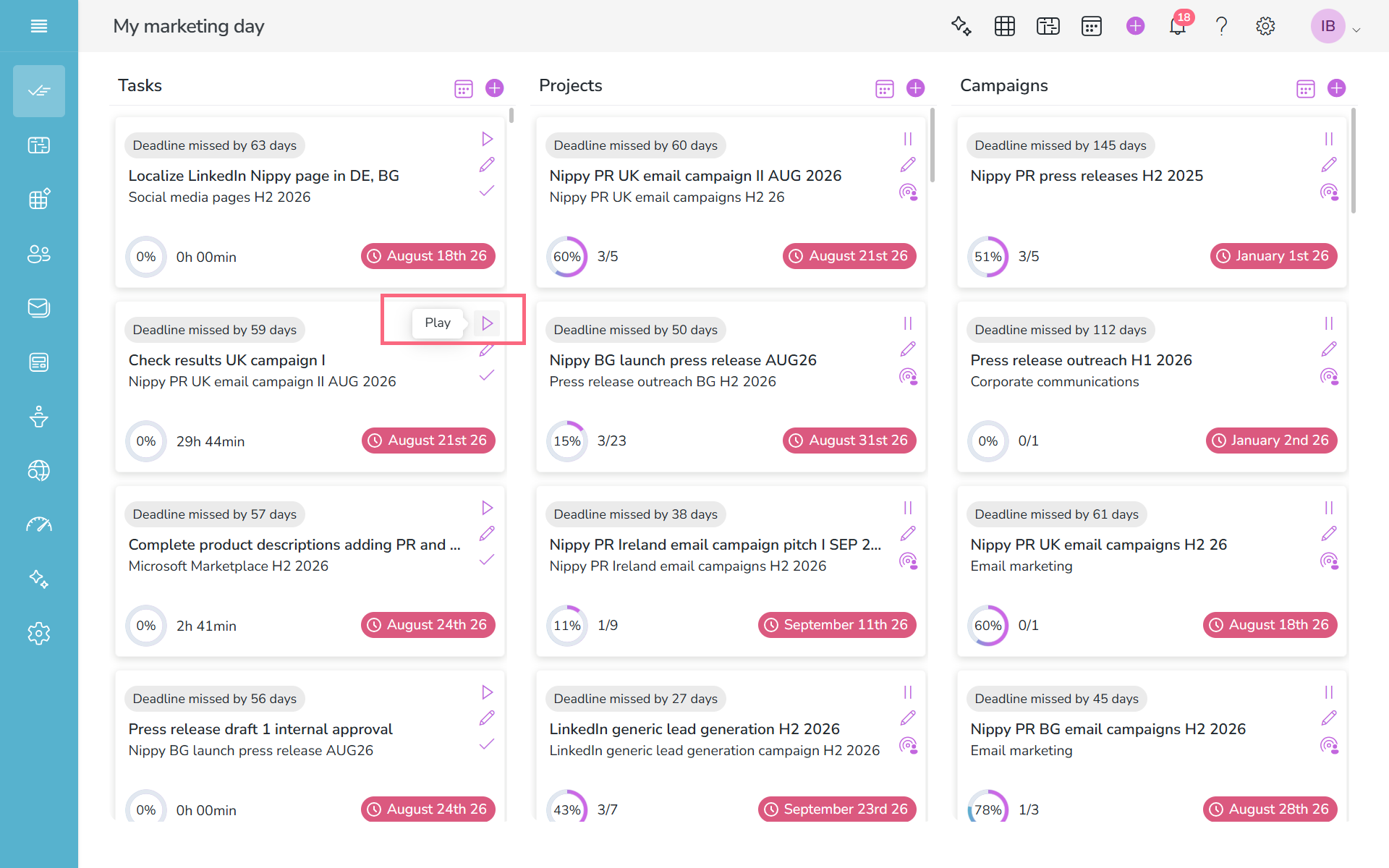
The actual execution time (actual effort) can be measured automatically by using the play button .
.
Playing it for the first time indicates that the actual work on the task and and its related projects and campaigns has started. The project and the campaign of this task will be labelled as being worked on with the pause icon .
.
You can play and pause a task's execution as many times as you like. Thus, the actual effort spend on a task is the sum of all time intervals while the tasks is played.
When start executing a task, if the project and campaign of this task are drafts, they will be launched too.
How to complete tasks in Nippy
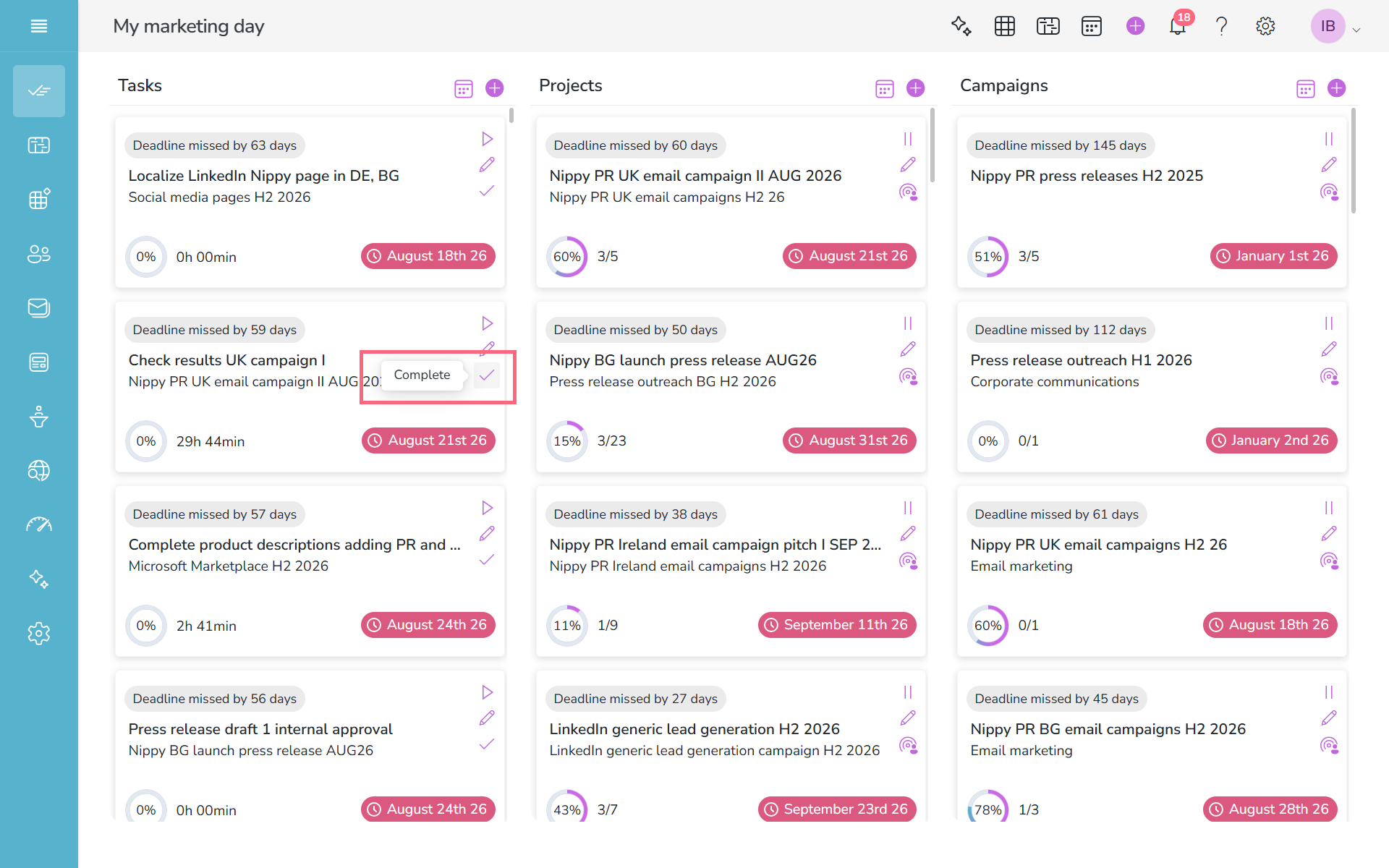
Nippy tasks must be completed manually. This can be done with the complete button under the complete icon . When a task is completed, it is removed from your Marketing day dashboard.
When a task is completed, it's Completed % becomes 100%.
The complete icon is available anywhere you have tasks in Nippy.
Record task's completion rate
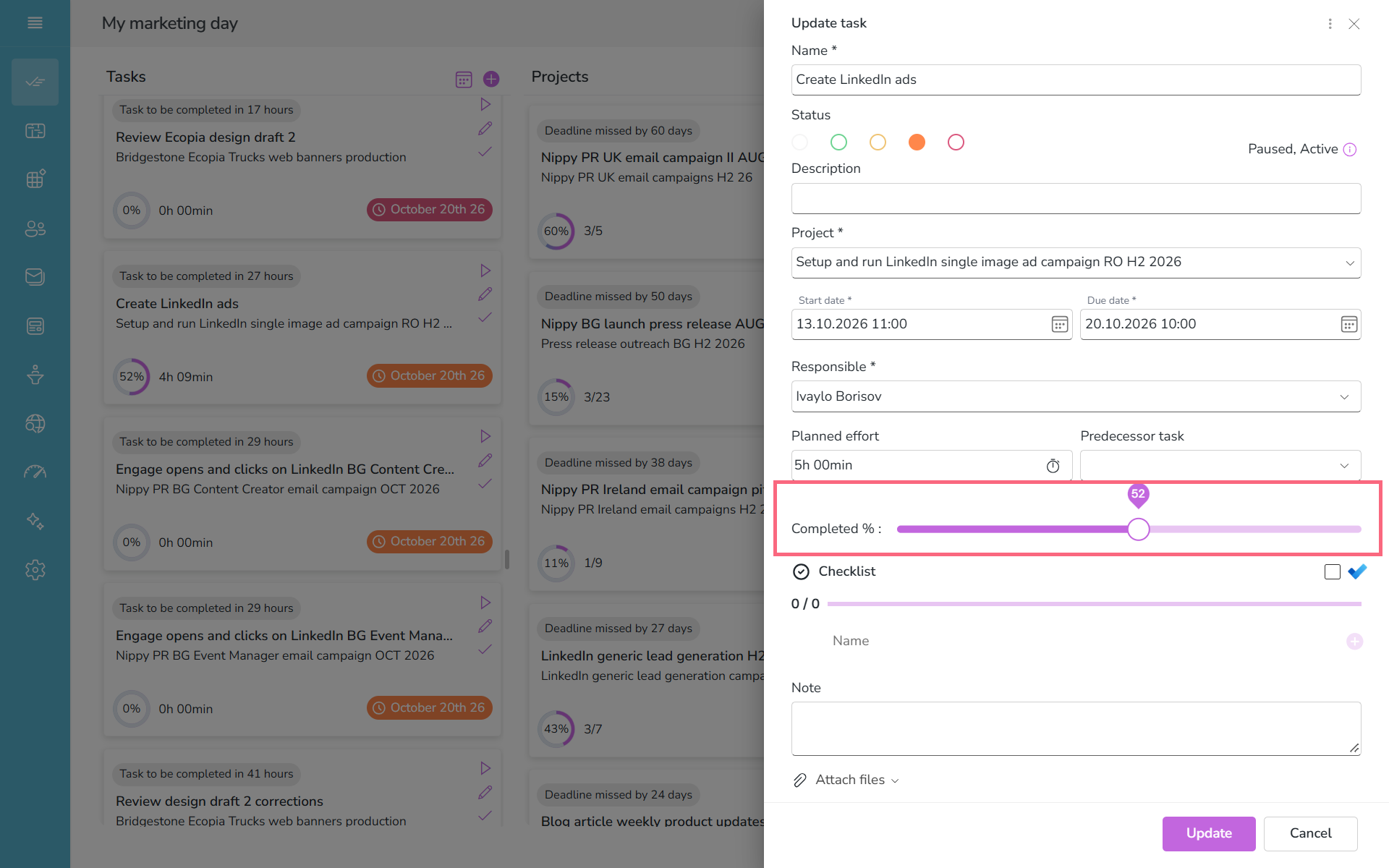
The task completion rate shows in percentage % how much of the task was completed. While completion % might be related to the actual time spend on the task, they are not the same.
Completion % is set manually through the slider in the task form. When the tasks is set to completed, the completion rate automatically becomes 100%.
How to reuse tasks in Nippy
Tasks can be easily duplicated in Nippy through the duplicate icon . When clicked, it opens the task form, creating a new task with the same parameters of the original task. The new task can be saved as a draft or launched in the workflow as anew task.
The duplicate icon is also available in the task form, Nippy Grid, and GANTT whenever you have a task.

Manage task status
Nippy has in-build algorithms for tasks priority and risk. They are represented by six colors and by default set automatically.
You can change the task priority and risk manually in the task form.
Open the Task form and change the color Status beneath the task name.
More on Nippy project management algorithms here.
