






Nippy Marketing Plan
Nippy Marketing Plan allows you to integrate and manage all marketing activities and financial resources in a single point of view. Nippy Marketing Plan is more than just a budgeting tool. It is fully integrated with Nippy Marketing Manager and once a plan is Launched all team members have their responsibilities visible in their workflows.
Nippy Marketing Plan allows for orchestration of marketing activities for complementarity, as well as to control budgets and marketing expenditure.
You can use Nippy Marketing Plan with Nippy Process, Nippy Integrate, or Nippy Agency.
The Nippy Marketing Plan structure
Nippy Marketing Plan consists of three major sections.
In the top row you can see the name of the current plan (you can choose to open another plan), the Launch button, and indicator if the plan is launched or a draft.
Next you can view and manage your budget and expenditure. You can set the desired budget for the whole plan and control live for marketing spend as this field is automatically updated with all costs of the projects and campaigns in the plan.
You can also see how your budget is allocated along marketing programs and distributed in the chosen period. Below the expenditure data you can choose the visible period of your plan - quarters, months, or weeks.
Next you can see the plan's body. The plan is structured according to programs, which consist of campaigns. On the header row you can see the chosen period. In the left column you can see the campaigns and on the right are budget and spend columns.
Cells in the middle show when activity is planned and the budgeted amount for each period. Colored cells are draggable to allow for marketing activities' coordination along time periods.

How to create a marketing plan in Nippy
You can easily create marketing plans for annual marketing planning, specific programs, and products for any period of up to 12 months within a calendar year. You can create a marketing plan from anywhere in Nippy using the Power Button.
1. Click on Power button in the right top corner and choose Plan from the dropdown.
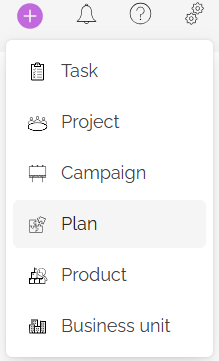
2. Fill-in the information in the dialog box on the right:
a. Add name (you could use clear name with included year). This is a required field.
b. Choose start and end date. This is a required field. You can create plans for any period of up to 12 months. (Available with Nippy Integrate and Nippy Agency). With Nippy Process you can can create one 12-month plan per year.
c. Add budget. Or you could add budget later in the marketing plan.
d. Assign plan to a company, business unit, or product. You can easily create clients, business units, or products from the marketing plan dialog box or the Power button.
3. Click CREATE.
Next, add campaigns and programs and Launch the plan to push campaigns, projects, and activities to the marketing team. If not launched, the budget is saved as a draft. You can always go back to edit the budget parameters.

How to edit a marketing plan
Anytime you can edit the parameters of your marketing plan:
- Click on the three dots on the right of the plan's name.
- Choose Edit to open the plan's dialog box.
- Make changes and click UPDATE.
If you want to push new draft activities in the team's workflows, you need to LAUNCH the plan again.
Add programs and campaigns to marketing plan
Nippy Marketing Plan is organized according to programs and campaigns. Programs are a collection of marketing tactics that together will allow you to achieve you strategic marketing objectives. Programs are the tool to implement your marketing strategy on a high level. Programs, for example, can be Content, Corporate events, PR, Organic social media, Advertising, etc.
Campaigns are the marketing activities, part of a program, through which the chosen marketing tactics are implemented. For example, under Advertising you can have multiple campaigns - seasonal advertising campaigns, product-related advertising campaigns, or if you want according to media channel: print, OOH, or digital campaigns.
After you have created your marketing plan, you need to start creating programs and campaigns.
Add programs to marketing plan
You can not add a campaign in the Marketing plan outside of a program. If you want to create a new program when creating a campaign, open the campaign's dialog box, choose available program from the dropdown menu in the campaign dialog box or type to create a new one. You can create unlimited number of marketing programs.
You can choose not to create programs or product marketing sections, but this will limit the opportunity for orchestrating integrated marketing communications and subsequent analysis.
Add campaigns under a program in Marketing Plan
You can create new campaigns or add existing, draft, or template campaigns to a marketing plan.
Create a new campaign and add it to Marketing Plan
You can create a new campaign and add it to the marketing plan and a program through the Power button from anywhere in Nippy. More about campaign creation here.
- Open the campaign creation form either through the Power button or clicking + in a new marketing plan.
- Fill-in required fields and choose Marketing plan and a program.
- Save as a draft or launch the campaign. If saved as a draft, the campaign needs to be either separately launched or the marketing plan must be relaunched.
You can add a new campaign to Nippy Marketing Plan only if the campaign's launch or end date is set within the period of the plan.
Add an existing campaign to Nippy Marketing Plan
You can also add existing campaigns through the plus icon in the heading row of programs. When clicking on the campaigns icon, you will see a list of the Draft, Active, and Templates campaigns and select the one you would like to add to your plan. The added campaign will automatically assume the name of the plan and the program, under which it has been added.
When you add an existing campaign to Nippy Marketing Plan without changing the campaign dates, the campaign's launch date will assume the date same date in the year of the plan with start and end dates will change accordingly to preserve the original period between start, launch, and end dates.
If the end date is outside of the scope of the plan's period, the campaign's period in the plan will be between launch date of the campaign and the end date of the plan. The whole of the campaign's budget will be allocated in this period.
When a start date is outside of the planning period, the campaign's period in the plan will be between the campaign's launch and end date period.
If a start and launch date are outside of planning period, the campaign's period and budget in the current plan will be between the start date of the plan to the end date of the campaign.
When adding an existing campaign whose launch and end dates are beyond the plan's period, the plan will assume as a launch date the first date of the plan's period.
How to Launch Nippy Marketing Plan
Nippy Marketing Plan and the campaigns in a plan are set by default as drafts. This means that they are not in the Nippy's algorithms and not visible in team members' Marketing Day dashboards. They will stay draft until launched.
When ready to be launched, all draft campaigns in your plan can be simultaneously launched by launching the whole plan through the LAUNCH button.
Alternatively, every campaign in the plan be separately launched.
Manage the marketing budget
Nippy Marketing Plan allows for different scenarios for determining your marketing budget. You can choose the most appropriate approach according to the characteristics of your organization and the marketing department processes.
Nippy Marketing Plan allows for financial management through budget and spend. It includes following elements:
- Budget - in the cell in the top left corner you can specify the total amount for the whole marketing budget.
- Spend - the cell beneath Budget shows the total expenditure in real time as the sum of all expenses under projects and campaigns.
- Column Budget - shows the budgeted amount for campaigns and programs. A campaign's budget can be set manually in plan or determined in the Budget field in the campaign's form. When adding a campaign to your marketing plan, regardless if some of the activities under this campaign are beyond the period of the plan, Nippy will add the whole of your campaign budget under the chosen marketing plan.
- Program total amount shows the budget under the program or product marketing plan. It can be set manually as amount or as a percentage of the whole budget in the cell to the right. If not determined manually, it will assume the sum of the campaigns' budgets under the corresponding program. You can use the calculate icon
 next to Total for the program cell to override the set manual program budget. Then, the total for a program will calculate and enter the sum of all campaigns' budgets under this program.
 - Bottom cell of Budget column shows the sum of the all budgeted marketing activities.
- Column Spend shows in real time the set expenses under all projects and campaigns.
Smart features will notify you when budgeted amounts misalign.
- If the manually set marketing budget is a smaller amount than the total budget for all activities in plan, red alerts will appear the Budget and Total marketing budget cells.
- If the sum of all campaign budgets under a program is higher than the total budget determined manually or through percentage for the program, red alerts will appear in the total amount for the program cell.
Manage the marketing budget
Nippy Marketing Plan allows for different scenarios for determining your marketing budget. You can choose the most appropriate approach according to the characteristics of your organization and the marketing department processes.
Nippy Marketing Plan allows for financial management through budget and spend. It includes following elements:
- Budget - in the cell in the top left corner you can specify the total amount for the whole marketing budget.
- Spend - the cell beneath Budget shows the total expenditure in real time as the sum of all expenses under projects and campaigns.
- Column Budget - shows the budgeted amount for campaigns and programs. A campaign's budget can be set manually in plan or determined in the Budget field in the campaign's form. When adding a campaign to your marketing plan, regardless if some of the activities under this campaign are beyond the period of the plan, Nippy will add the whole of your campaign budget under the chosen marketing plan.
- Program total amount shows the budget under the program or product marketing plan. It can be set manually as amount or as a percentage of the whole budget in the cell to the right. If not determined manually, it will assume the sum of the campaigns' budgets under the corresponding program. You can use the calculate icon next to Total for the program cell to override the set manual program budget. Then, the total for a program will calculate and enter the sum of all campaigns' budgets under this program.
- Bottom cell of Budget column shows the sum of the all budgeted marketing activities.
- Column Spend shows in real time the set expenses under all projects and campaigns.
Smart features will notify you when budgeted amounts misalign.
- If the manually set marketing budget is a smaller amount than the total budget for all activities in plan, red alerts will appear the Budget and Total marketing budget cells.
- If the sum of all campaign budgets under a program is higher than the total budget determined manually or through percentage for the program, red alerts will appear in the total amount for the program cell.
Financial planning with marketing plan
Nippy Marketing Plan allows for real-time visualization of budgeting according programs and period in time.
The Budget per program chart shows the budget distribution according to programs.
The Budget per quarter/month/week shows the planned budget according to the chosen period.
The cells in violet in every campaign row show the average budget distribution for each campaign according to the chosen period.
Manage marketing campaigns within the Marketing Plan module
Nippy Marketing Plan allows for orchestration of marketing tactics so that they could complement each other for integrated marketing or if you need to better distribute the plan's budget in the chosen planning period.
The cells in violet for each campaign show the period between launch and end of a campaign. The whole period can be dragged horizontally to better align marketing activities. When dragged and dropped in Marketing Plan, the change in the campaign period is automatically reflected in the corresponding campaign's launch and end date and the periods of all projects and tasks, part of this campaign.