






My Marketing Day dashboard
Nippy Marketing Day is the dashboard marketers use to execute and manage their daily responsibilities. My Marketing Day is the first thing you see when in Nippy. It allows you not only to execute activities in the right order but also to have visibility in the projects and campaigns that your responsibilities are part of.
You can access My marketing day through the sidebar menu on the left and the always present icon in the header row.
Here you will learn about:
- My Marketing Day dashboard elements
- Tasks in My marketing day
- Projects in My marketing day
- Campaigns in My marketing day
- My Marketing Day smart algorithms
- Pause and relaunch campaigns, projects and tasks
My Marketing Day elements
My Marketing Day is made up of three columns, each consisting of information cards. The column on the left contains your marketing tasks, the column in the middle - the marketing projects you are responsible for or the marketing projects your tasks are part of, and the column on the right - the marketing campaigns you manage and the campaigns your tasks are part of.
What every marketer sees in his dashboard are all tasks assigned to him and all projects and campaigns his tasks are part of. This allows any marketer in the organization to have a view and understanding of the campaigns and projects they are working on.
At the top of each column there are two icons - one for adding a task, project, or campaign and the other is a link to filtered calendar view for your tasks, project, or campaigns.

Tasks in My Marketing Day dashboard
The tasks column in My Marketing Day consists of cards ordered according to predefined algorithms. You could also manage them manually according to priority or the requirements in the projects and campaigns they are part of.
The task cards have the following elements:
- Text prompt about when to execute or the status of the task.
- The name of the task.
- The name of the project this task is part of.
- On the right there are three icons: play/pause a task, edit a task, and complete a task. More about tasks management here.
- At the bottom there is information about the completion %, the actual time spent working on the task, and the due date of the task in the status color of the task.
If you have added start and due date and the task is part of a project that is in the workflow, tasks' cards will be ordered according to the in-built Nippy algorithms and you will notice automatic change in the color of the due date field. The reds are on top and the white at the bottom. More about algorithms and the Nippy "traffic lights" system in tasks here.
The tasks with the same status are ordered according to the most recent due date and time with the most recent on top. The Nippy algorithms also prioritizes tasks with long lead times and dependent tasks.

Projects in My Marketing Day dashboard
In the middle column there are the projects' cards, part of which your tasks are.
The project cards have the following elements:
- Text prompt about when to start, execute, or the status of the project.
- The name of the project.
- The name of the campaign this project is part of.
- The number of tasks under this project assigned to the user.
- On the right there are three icons: pause/resume a project, edit a project, and collaborate with the project team. When a project is in the process of execution (at least one task, part of this project has been played), the pause icon will appear. Clicking this icon will pause all activities under this project and will remove them from your Marketing day. More on project management here.
- At the bottom there is information on the completion rate of the project, the completed vs. all tasks in the project, and the end date of the project in its status color. The project completion rate is calculated automatically as average of the completion rates of the tasks under the project.
If you have added start and end date, projects' cards will be ordered according to the in-built Nippy algorithms and you will notice change in the color of the due date. The reds are on top and the white at the bottom. More about project algorithms here.
The projects with the same status are ordered according to the most recent start and end date with the most recent on top.

Campaigns in My Marketing Day dashboard
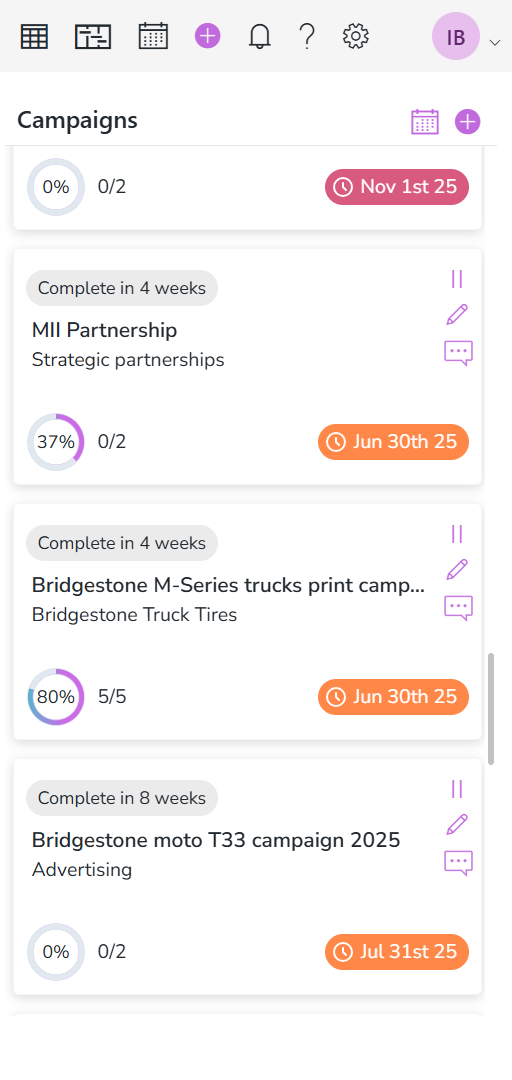
In the right column there are the campaigns' cards, part of which your projects and tasks are.
The campaign cards have the following elements:
- Text prompt about when to start work on the campaign, when to launch a campaign, or the status of the campaign.
- The name of the campaign.
- The name of the marketing program this project is part of.
- The number of projects and tasks for the campaign, assigned to the user.
- On the right there are three icons: play/pause, edit a project
 , and collaborate
  with the campaign team. When a campaign is in the process of execution (at least one task, part of this campaign has been played
  ), the pause
 icon will appear. Clicking this icon will pause all activities under this campaign and will remove them from your Marketing day. More on campaign management here.
 - At the bottom there is information on the campaign's completion rate, the number of completed projects vs. the total number of projects under the campaign, and the launch date of the campaign in its status color.
If you have added start, launch and end date, campaigns' cards will be ordered according to the in-built Nippy algorithm and you will notice change in the color of the due date. The reds are on top and the white at the bottom. More about Nippy campaign algorithms here.
The campaign with the same status are ordered according to the most recent launch and start dates with the most recent on top.
Pause and relaunch activities
When a campaign, projects, or tasks are launched, they become part of the Nippy algorithms and visible in the My marketing day dashboard.
The actual effort on projects or campaigns is recorded when the execution of the first task, part of the project/campaign has started. To start this process, you need to click playicon on a task.
After a task/project/campaign's execution has started, you will see the pause icon appearing on the project and campaigns cards.
You can play and pause a task as many times as you need until completion. During every play, Nippy will record the work time on the task.
Clicking pause on a the project/campaign card will pause its execution. This will remove the project/campaign and related tasks from the My marketing day dashboard and Nippy algorithms.
If you need to restart work on a campaign or project, locate the activity in the table or GANTT and click play. When a campaign/project is restarted, all its related activities reappear in My marketing day dashboard and Nippy algorithms.