






Nippy Media Relationship Management
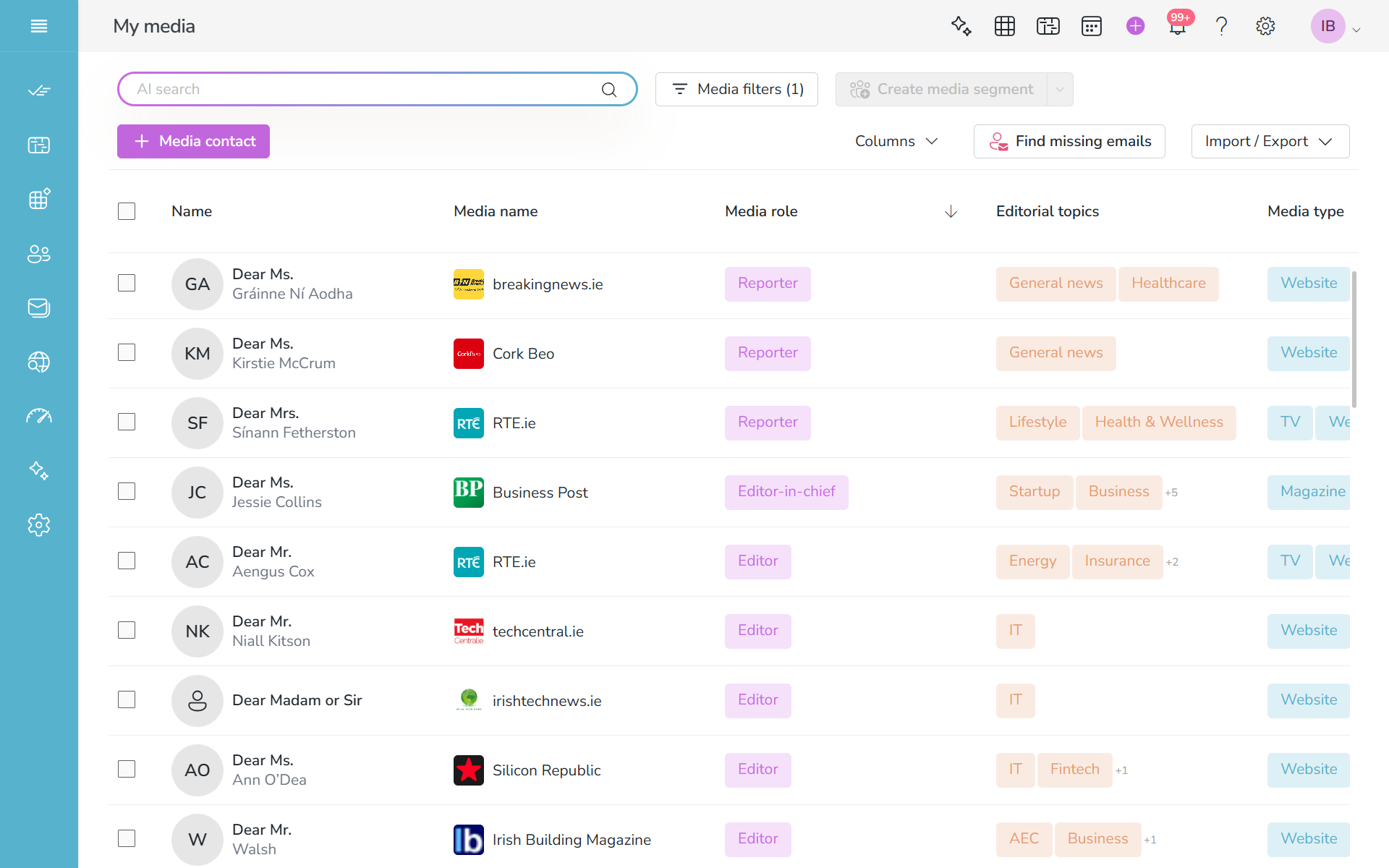
With Nippy Media Relationship Management you can manage all your media contacts. You can add contacts, analyze media response and collaborate with media representatives.
In this article you will learn about:
- How to add media representatives to Media Relationship Management
- Edit media relationships contacts
- How to add Media to a contact
- Tag media and media relationship representatives
- Filter media contacts and create media groups
- Enter media outreach and analyze media outreach response
- Import and export media representatives
Add media representative contact
- Go go My Contacts/My Media.
- In the top left corner lick +Media Contact

- Fill-in the contact details. First/Last name and Media name are required fields. If you need to add more fields, click on the + below the corresponding section. If you have entered media in your organization, you better choose the corresponding one. If you don't have the media you would like to add, enter the new name. When an existing media is chosen, the already entered tags for this media like Media type and Editorial topics will appear automatically. If you need to add another editorial topic, you can do it in the Editorial topics field.
Contact email validation
Properly formatted and correct email records are important part of the email sending reputation. If you try to send to a non-existing email, the email platform will mark this as a Hard bounce. Big number of bounces will reduce your email reputation and potentially, your deliverability.
That is why in Nippy we have built email validation to ensure that your contacts' email are according to the proper email syntax.
If you email entry does not correspond to the following rules, you will not be able to save the contact details:
- The email address doesn't include the
@symbol between the local-part and domain part. - The local-part of an email address includes characters other than the following:
- Letters (
A-Z,a-z). - Digits (
0-9). - Special characters (
!,#,$,%,&,',*,+,-,/,=,?,^,_,`,{,|,},~,.).
- Letters (
- The local-part starts with a period (
.) or includes two or more periods in a sequence (first..last@example.com).
Target email servers and email service providers might have additional restrictions on email address syntax.
Edit media contact
- Go go My Contacts/My Media.
- Find the contact you want to edit. You can use the Seach, Name column sorting, or Name column filter when you hover over the column's name.
- Hover over the contact's name and click on the EDIT in the appeared menu. This will open the contact's form with three tabs: Profile, Contacts, Outreach response.
- Edit the required information and click SAVE.
Add Media profile to a media contact
Media name is a required field when creating a contact. You can add existing media to a contact or create a new one. Every created media is saved in your organization's media list.
For Media you can define Media type. Available in Nippy are following media types according to the type of publication and its frequency of publication: Newspaper, Magazine, Daily, Weekly, Monthly, Radio, TV, Website, Podcast, Newsletter, Online video, News agency.
When user chooses an existing media, the media types for this media are automatically imported.
To add new or existing media to a contact, open the new or existing contact, go to Media name, which is under Profile tab in the contact form, and search, select, or write down a new media name.
When an existing media is chosen, the already entered tags for this media like Media type and Editorial topics will appear automatically. If you need to add another editorial topic, you can do it in the Editorial topics field.
Create a media contact profile
Media and their contacts in Nippy are connected. You can create profiles for Media and for their representatives accoding to certain characteristics. You can choose from predefined characteristics and add yours.
Adding and existing media will also add its existing editorial topics (the sum of all editorial topics of all media representatives) to the contact's profile.
Filter media contacts and create media segments
In Nippy Media Management you can filter media contacts according to many parameters: country, media type, media role, editorial topics, brand affinity, or media.
- Hover over the name cell of the column, according to which you want to filter and click the appearing three dots to launch the filter menu
- Or launch the filter
 above the table and choose the combination of filters
Tag media outreach response for media contacts
- Open the contact edit forms and go to the Media response tab.
- Select from available or enter a media outreach press release name.
- Select the relevant tag: Received, Read, Published, Not Putblished, Media published (outreach was made to a specific contact but the press release was published not by the concrete author, but by another media representative).