







How to create and send email campaigns in Nippy
With Nippy Email you can create high quality email designs and target recepeints with personalized email for media outreach and all kinds of events.
In this article you will learn how to create HTML emails, select recipients and send personalized emails.
How to create an email in Nippy
Nippy Emails are fully integrated with Nippy work management. To start with an email, you create an email task. The moment you start work on your email, Nippy automatically records your time of work on this task.
- Go to the main menu My emails.
- When in the email management module, click on Create email
- Fill-in the required information in the email task form. Email name, responsible, email type, and project are required fields. Nippy tasks must be part of a project. More on how to create projects here.
- Add checklist. The checklist will appear in your email page and will help you ensure quality of execution.
- Click Launch and go to email. This will lead you to the email creator page while Nippy launches the task and starts automatically to record the actual time worked on this email. If you choose Save, the task and its email will be saved as a drafts. Both can be launched - the task from Drafts in Grid or GANTT; Email from the email management module. If you choose Launch, the task will be launched to active (will appear in your Marketing Day dashboards), but because you don't work on the email, actual time of work will not be recorded.

How to send a Nippy PR email
When you are done with the email design and editing, you caould either send the email immediately or schedule it for future date and time.
- Click Edit next to the email you want to dend in the emails list.
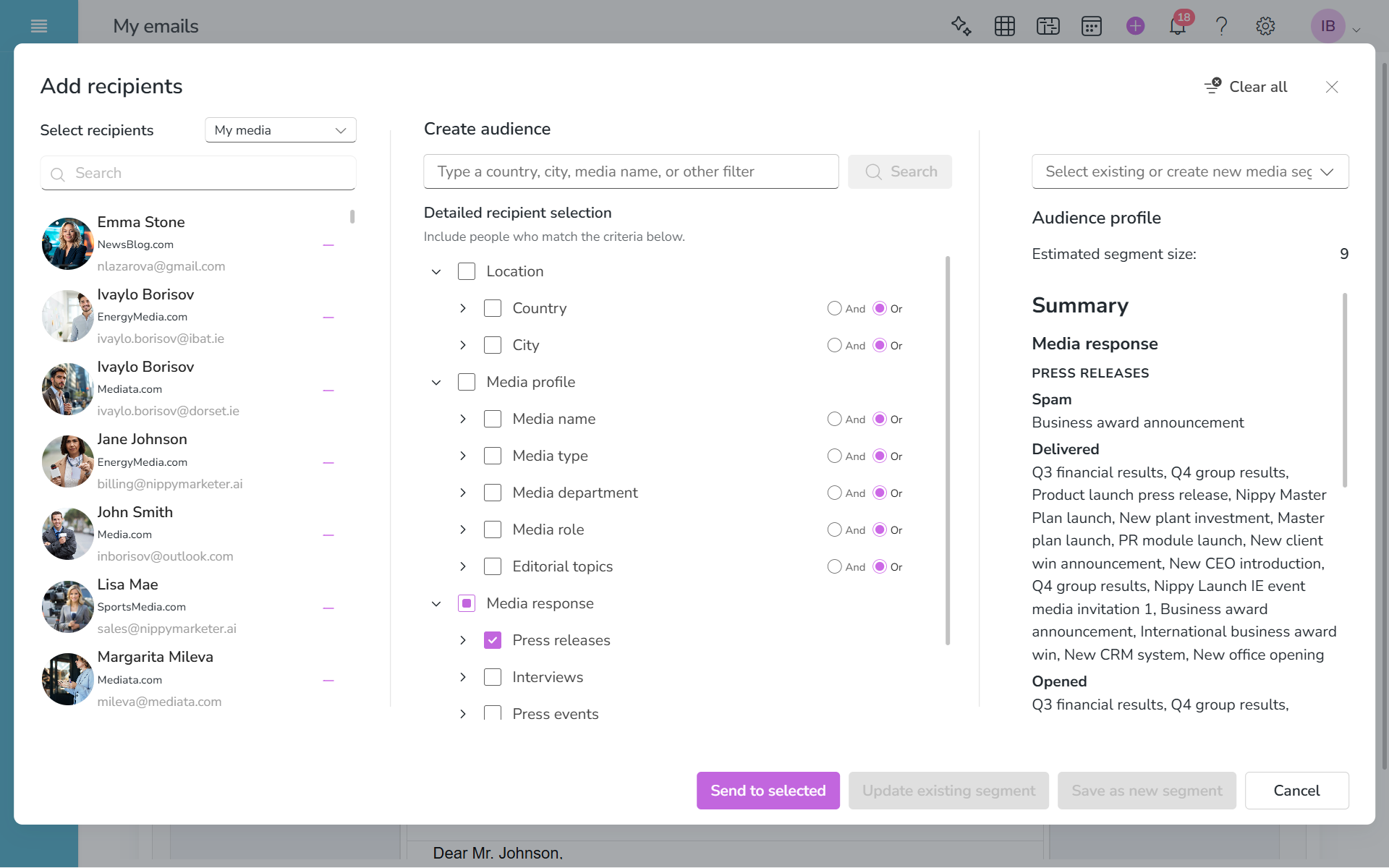
- Choose your recipients. Click on the TO field to open the recipients selector dialog. On the left you will see all your media representatives and you could search and add separate contact. Or, you could use the filters to choose recipients according to the many parameters. And if you have previously saved segments ad media lists, you could just select one of them. When done, click SAVE. Above the recipients field you will see the number of contacts in your mailing list. You can always click again to open the recipients dialog and edit your recipients list.
3. Fill-in the subject and preview fields on the right of the recipients fields.
4. Preview your email before you click SEND.
5. Either send immediately by clicking SEND or choose date and time to send the email campaigns in the future.
You can send email only if you are on paying subscription plan. You cannot send emails while on trial.
Invalid emails
When you attempt sending, Nippy will validate the recipients' emails if they conform to email requirements and will remove from the sending list missing and invalid email addresses.
You will be notified about the contact that were excluded from the recipients list and they will not be sent emails.
What makes an email address invalid
An email address is invalid if it meets either of the following conditions:
- The email address syntax doesn't comply with internet email format standards.
- The selected email field is empty.
- The email address doesn't exist at the recipient's mail server.
Valid characters for email addresses
- The email address doesn't include the
@symbol between the local-part and domain part. - The local-part of an email address includes characters other than the following:
- Letters (
A-Z,a-z). - Digits (
0-9). - Special characters (
!,#,$,%,&,',*,+,-,/,=,?,^,_,`,{,|,},~,.).
- Letters (
- The local-part starts with a period (
.) or includes two or more periods in a sequence (first..last@example.com).
Non-existent emails
If for some reason the email address is no longer active in the recipient's email server, the send will be mark as Hard bouce.
You can filter your media list according to bounces and if the email is non-existent, you must remove it from your list.
Type of emails in Nippy
Emails in Nippy can be draft, in progress, sent, scheduled, or templates.
You can follow email status in the main email editor or in the email manager grid.
The email status is independent of the related task status.
For example, when email is a draft with any type of edit, the task automatically becomes active and every time you open to work on the email, the task is automatically played and in progress. When the email editor is closed, the task is paused.
If the email task is completed, the email becomes view-only.
Email status
Definition
Draft
Any created email before being clicked SEND. When edited, tasks is launched and active.
In progress
Email is in progress of being sent after click SEND.
Sent
All emails are out of outbox and sent.
Scheduled
Email is scheduled for sending.
Template
Email is saved as a template.
Email limitations
There are certain limitations when sending emails from Nippy:
Processed email
Every user's email limits is determined by the number of Processed emails. These are the email requests that SendGrid has successfully received and is preparing them for delivery to the recipient's mail server.
Email recipients
Each email can include up to 1,000 recipients.
Email size
Maximum email size is 30MB, although it is recommended to keep attachments under 10MB.