






How to do online media monitoring with Nippy PR
Nippy Online Media Monitoring allows you to search and extract relevant media monitoring from thousands of sources from anywhere in the world.
Nippy Media Monitoring is powered by Google News and Google Search/News tab. Due to Google limitations, the available media data could differ. For example, in certain cases or geographies, bylines data might be incomplete or missing.
It is an interactive management tool, connected to Nippy Media Relationship Management and Nippy Media Response analytics.
Nippy Media Monitoring is available for Nippy Integrate and Nippy Agency subscribers. Nippy Integrated subscribers have limit of 60 searches per user per monthg and Nippy Agency have 120 searches per user per month. If you need more searches, please contacts us at sales@nippymarketer.ai.
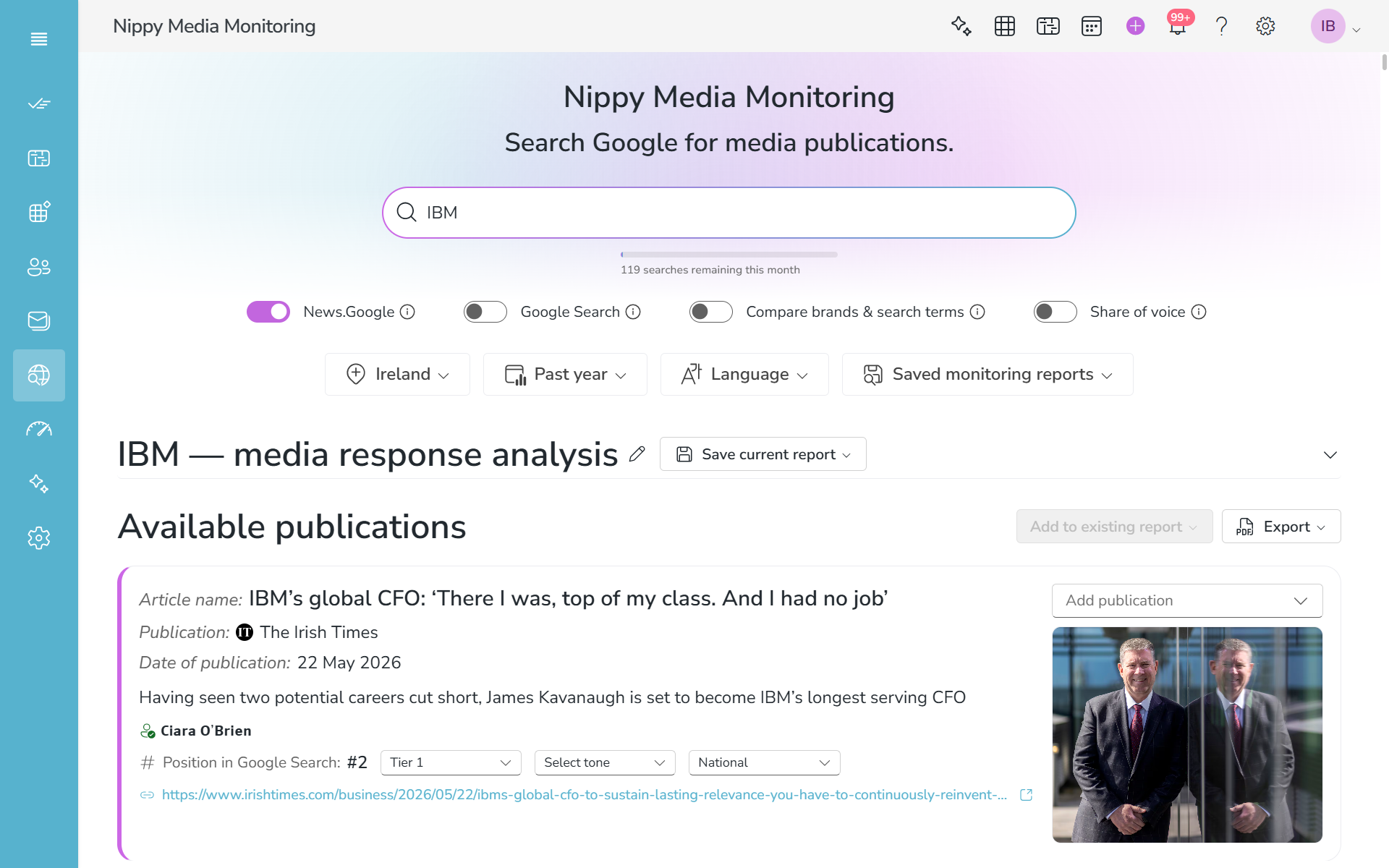
How to execute media monitoring in Nippy
- Go to Media Monitoring in the sidebar menu
- Type search keyword in the search bar
- Select New.Google or Google Search (News.Google extracts clippings from New.Google. These are limited to 100 clippings. Google Search extracts clippings from the News tab of Google Search. It not limited to number of clippings. Every additional page is one credit from your Media Monitoring allowance. For example, if you use News.Google and then 3 pages of Google Search, you will use 4 credits of your media monitoring.)
- Choose country, time period or language
- Press ENTER
Save media monitoring reports
With Nippy you can save media monitoring reports for further management. Saving reports allows you to add clippings from additional searches or remove irrelevant clippings.
- Edit the report title
- Select Save all or Save selected from the Save current report button on the right of the report title.
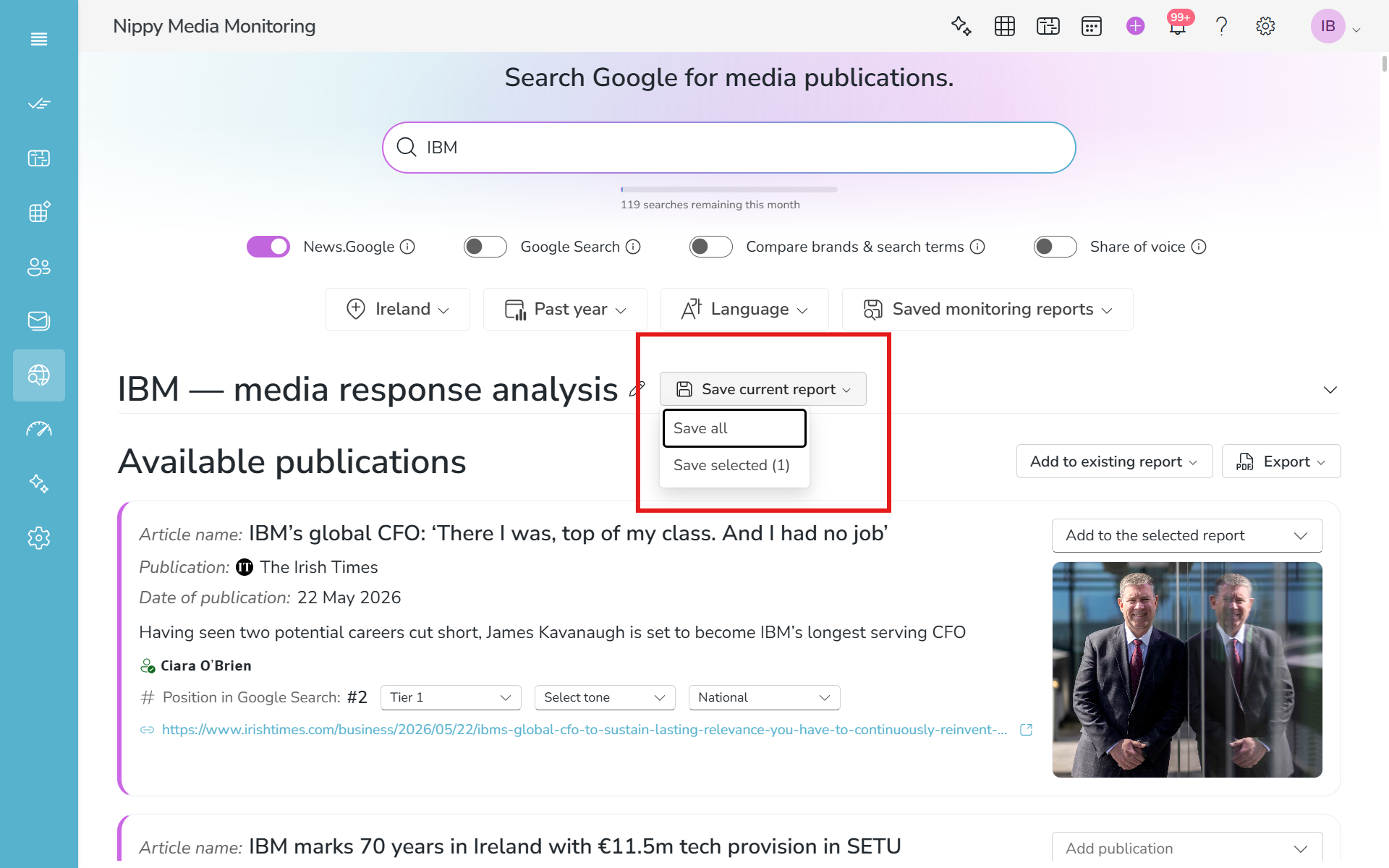
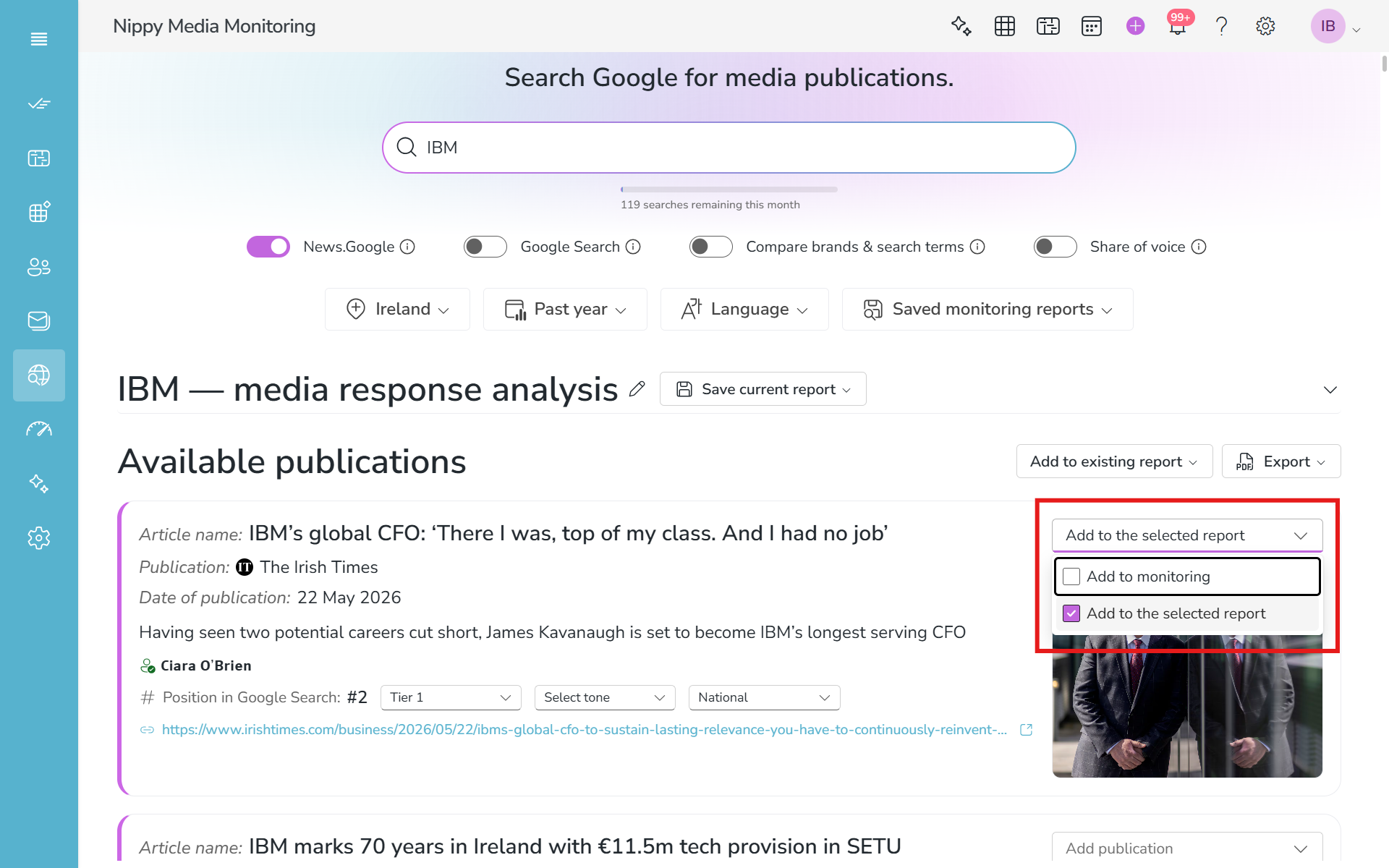
To save only selected publications, first add the clipping you want to save to Add to the selected report in the top right corner of every clipping.
To open and manage a saved media monitoring report, select the repost from Saved monintoring reports.
You can manage the saved report by removing or adding clippings, save changes, or export it.
Export media monitoring reports
With Nippy you can export complete reports or selected publications in PDF or Word.
Go to Export opposite the Avalable publications heading and select PDF/Word Export all or Export selected publications

To export selected publications, go to Add to selected report and select the Add to monitoring checkbox.

Add publications to media response analysis
Nippy Media Monitoring comes with in-built MRA. It includes charts on:
- Number of publications
- Media tier (Tier 1, Tier 2, Tier 3)
- Tone of voice (Positive, Neutral, Negative)
- Editorial topics
- Media type (National, Local, Specialized),
To access the analytics, expand the field below the media monitoring report heading.

- To see relevant data, add publications to the media monitoring report. Go to Add to selected report and select the Add to monitoring checkbox.
- If you have the author and the media in your database, Editorial topics and Media type will be automatically extracted. For every selected publication, select the Tier, Tone, and Media type.
You can manage this for new and saved reports. Adding a publication to a media monitoring report will add its data to the author and the MRA for your PR efforts in Nippy.

How to extract media contacts from Nippy Media Monitoring
- Go to Media Monitoring in the sidebar menu.
- Type search keyword in the search bar.
- Choose country, time period or language.
- Press ENTER.
- In the cards with author data, next to their name you will see a notification if they are in your MRM or not.
- If not, the ADD AUTHOR button will appear next to their name. Click the ADD AUTHOR button. This will open the contact form with already populated available data on this contact.
- Edit the contact form and click SAVE.